Today, we’re excited to introduce the new WalletConnect Dashboard! The dedicated home for wallets and apps to manage everything in one place. This new Dashboard is not just for project creations but also the gateway for submitting your wallet to WalletGuide, making it easier than ever to get discovered by users. It also brings the entire WalletConnect Certification process under the same roof, so teams can submit, track, and manage their certification steps seamlessly.
With this release, we’re laying the foundation for a smoother, more transparent, and more unified experience for app and wallet developers. Let’s take a quick look at how you can get started and create your first Project ID.
In this tutorial, you will learn how to:
- Create a project for your wallet or app on WalletConnect Dashboard.
- Submit your wallet to WalletGuide.
This guide takes approximately 10 minutes to complete.
Let’s get started!
Create a Project
First, open the WalletConnect Dashboard by navigating to dashboard.walletconnect.com and signing in. If you don’t have an account yet, please create one before proceeding.
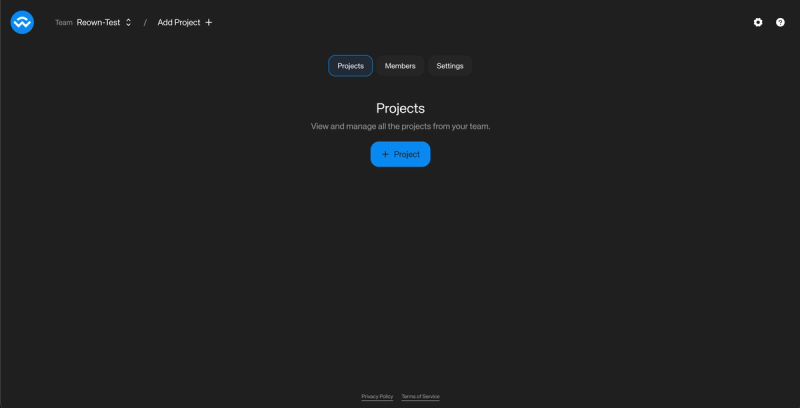
Once you're logged in, go to the "Projects" section under Cloud and click on "+ Project".
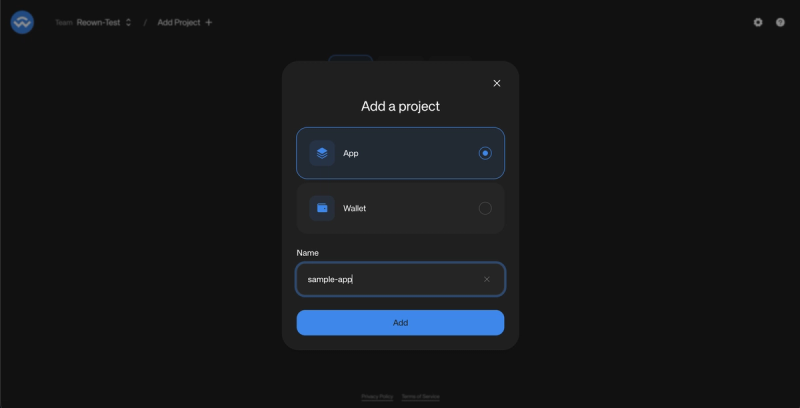
Now, enter the name for your wallet, select “App” or “Wallet” depending on what the relevant option for your project is, and then click on “Add”.
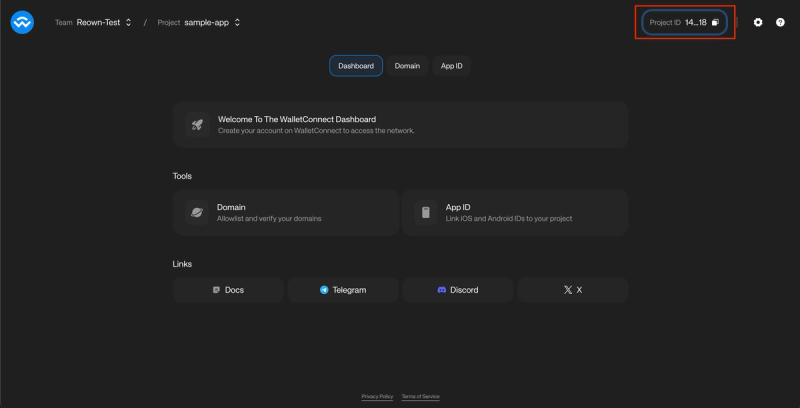
You will now be able to see that a new project was created for you. You can find the project Id for your new project on the top right corner of the Dashboard. You will need this to access WalletConnect’s service both as an app and as a wallet.
Submit your Wallet to WalletGuide
WalletGuide is the directory of wallets that support WalletConnect. As a user or a project, this remains the source of truth to find out which wallets support WalletConnect, which chains/network they are on, and the devices/platforms they support.
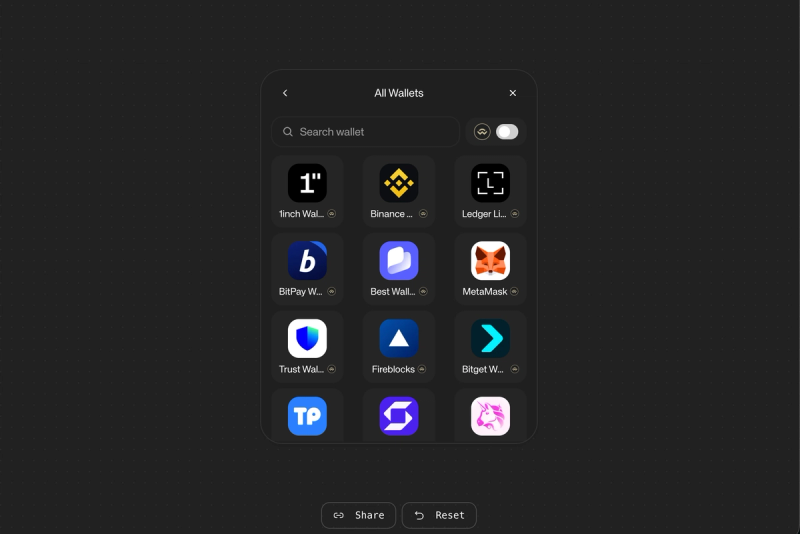
As a wallet, successfully submitting your wallet to WalletGuide is the only way to have your wallet appear in the WalletConnect Modal (as shown below).
If you are wondering how you can submit your wallet to WalletGuide, please read the guide linked below which will walk you through the steps.
https://walletconnect.com/blog/how-to-submit-your-wallet-to-walletguide-reown-dashboard-edition
Your submission may take up to 7-10 working days to be reviewed. Once approved, the wallet will instantly be available as an option to connect with in the WalletConnect modal. However, it takes 24-48 hours for your wallet to show up on WalletGuide after approval. This does not affect the accessibility of your wallet in any way.
WalletConnect Certified
If you are interested to learn more about WalletConnect Certified and would like to be part of the program, click here and click on “Contact sales and partnerships”.
Conclusion
With the new WalletConnect Dashboard, managing your wallet or app has never been easier. From creating projects to submitting your wallet for WalletGuide and handling your Certification process, everything now lives in one unified, developer-friendly space. We’re excited to see how this streamlined workflow helps teams move faster, stay organized, and deliver better user experiences across the ecosystem.
If you haven’t already, jump into the Dashboard and set up your project and let us know your feedback as we continue improving the tools you rely on.
What's Next?
If you're wondering how to use WalletConnect for various use cases and build apps with great UX, feel free to check out our other blogs below.
https://walletconnect.com/blog
Need help?
For support, please join the official WalletConnect Discord Server.